
Your event page
Your caterer has given you your own event page on GildLuxe. It's where you see your plans, make choices, approve your menu and run of show, and message your caterer as your celebration comes together.
Who can do this
The people your caterer invited, such as both members of a couple. Each of you sees only your own event.
Before you start
- Find the email from your caterer called Your event page with (their business name). It comes from GildLuxe on their behalf.
- Use the email address it was sent to. The invitation only works for that address, and it works for 7 days. If it has expired, ask your caterer to send a new one.
Open your event page
- In the email, click Open your event page.
- Sign in with the email address the invitation was sent to. GildLuxe emails you a sign-in link and a 6-digit code: there's no password (see Sign in to GildLuxe).
- Click Open my event page.
Next time, sign in at app.gildluxe.com/login. If you're planning more than one event, you'll see Your events first: choose one.
What's on your page
- Your event's date, venue and guests, and a countdown to the day.
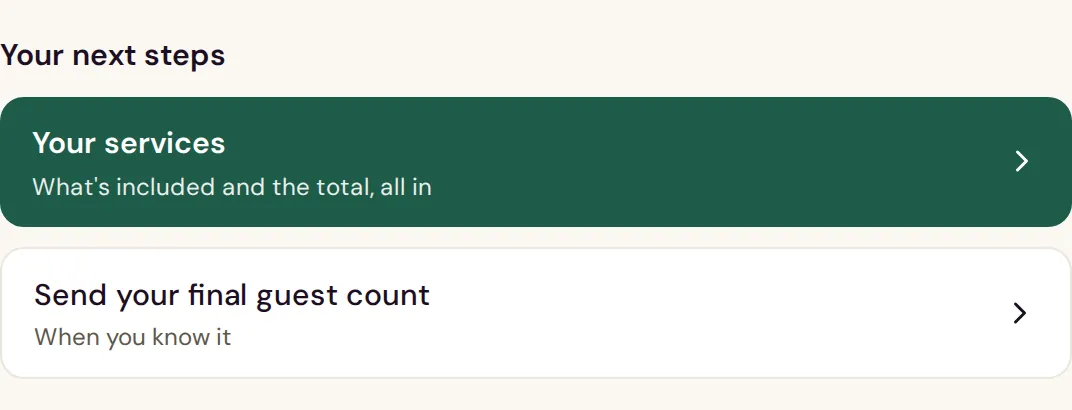
- Your next steps: what's waiting for you, such as reviewing your proposal, approving your menu, or sending your guest count. Each one takes you there.
- Changes to approve: anything your caterer has added to your event. Click Approve to accept it; approved changes are added to your total.
- What we need from you: things your caterer has asked you to do, with their dates. Tick each one when it's done.
- Payments: what you've paid and what's still to pay (see Pay an invoice).
- Messages: write to your caterer.
- Your traditions, Menu and Run of show, as your caterer plans them.
Approve your menu and run of show
When your caterer has written them, read them and click Approve the menu or Approve the run of show. If they change afterwards, the page says so, and you can approve the new version.
Answer your caterer's questions
Your caterer may ask a few questions about your celebration. Type your answers: they save as you go.
Send your final guest count
Once your event is booked, your page has a Final guest count section, with its due date if your caterer has set one.
- Enter the Number of guests.
- Click Send the count.
Your caterer confirms it. To change it before they do, enter the new number and click Update the count.
Message your caterer
Type in Write to your caterer (up to 4,000 characters) and click Send. Everyone on your event page sees the messages.
Who gets emailed
- Your caterer, when you send a message, approve a change, or send your guest count.
- You, when your caterer sends you a message and you have nothing unread from them.
What you'll see when it worked
Each thing you've done drops off Your next steps.
If something goes wrong
| What you see | What to do |
|---|---|
| This invitation can no longer be used | It was used, cancelled or has expired. Ask your caterer for a new link. |
| Sign in with the invited email address | You're signed in with a different email. Click Sign out and use another email, then sign in with the one the invitation was sent to. |
| Enter a guest count between 1 and 100,000. | Enter the number of guests as a whole number. |
| This isn't available any more. Reload the page to see the latest. | Your caterer changed something. Reload the page. |
Be careful
- Everything you write in Messages is seen by everyone on your event page and by your caterer.
- Ticking a task in What we need from you can't be undone. If you ticked one by mistake, tell your caterer.