
Sign in to GildLuxe
GildLuxe has no passwords. You sign in with a link or a 6-digit code that we email you.
Who can do this
Anyone with GildLuxe: owners and their team, and clients and vendors who were invited to their own pages.
Before you start
- Use the email address your invitation was sent to. An invitation only works for that address.
- The email comes from GildLuxe. If it hasn't arrived after a minute, check your spam or junk folder.
Sign in with the link
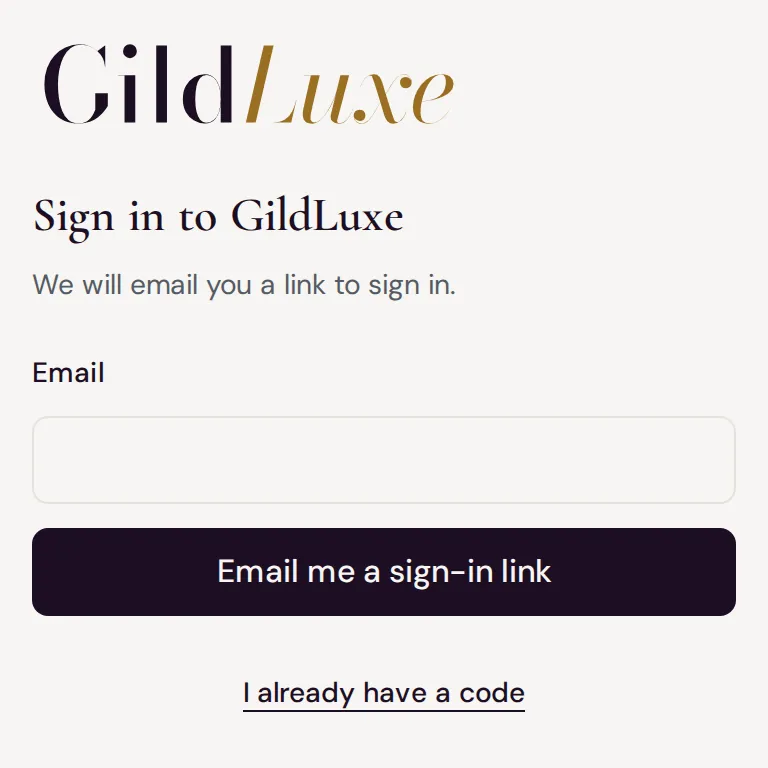
- Go to app.gildluxe.com/login, or click Sign in at the top of gildluxe.com.
- Type your email address in Email. It's the only field, and it's required.
- Click Email me a sign-in link. The page tells you to check your email.
- Open the email. It's called Your GildLuxe sign-in link and code. The first time you sign in, it's called Confirm your email for GildLuxe instead.
- Click Sign in to GildLuxe in the email (the first time, Confirm and sign in). The link works on any device, so you can ask on your computer and open it on your phone.
- A GildLuxe page opens and shows which email the link signs in. Click Finish signing in.
Or type the 6-digit code
The email also has a 6-digit code. Use it if your email app opens links in a preview, or if the link doesn't work.
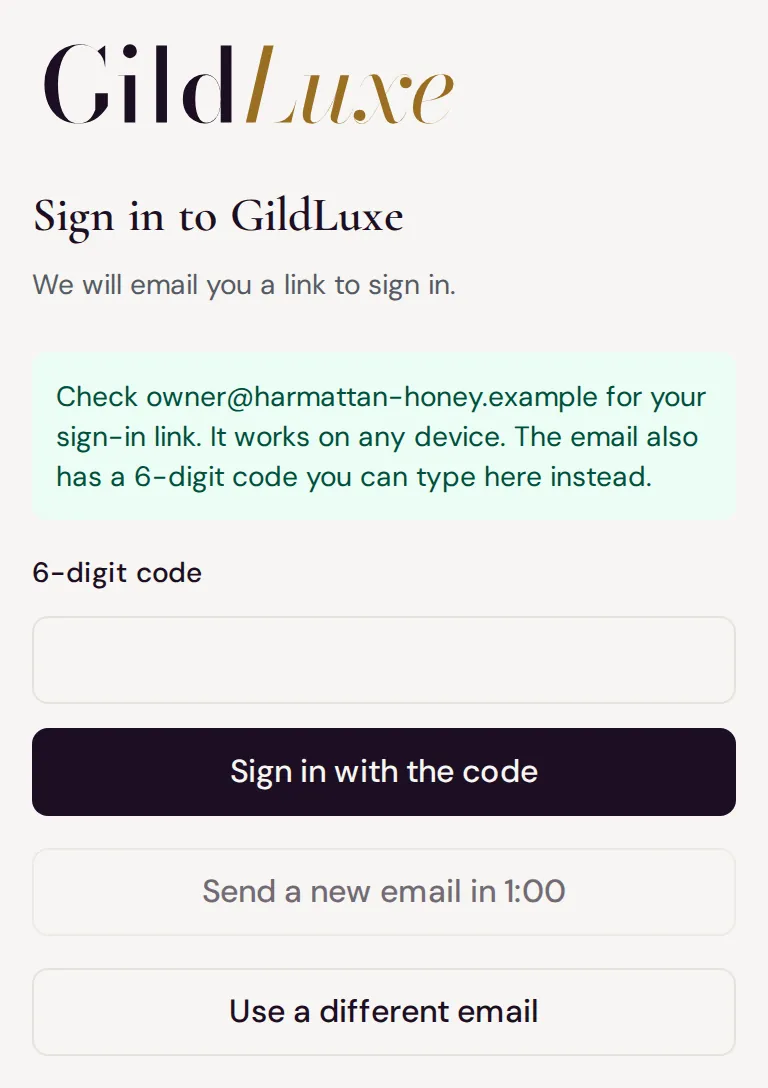
- Stay on the sign-in page after step 3. Type the 6 digits in 6-digit code.
- Click Sign in with the code.
If you've closed the sign-in page, open it again and click I already have a code under the Email me a sign-in link button. Then type your Email and the 6-digit code.
Good to know
- The link and the code work once, and only for 15 minutes.
- You can ask for a new email after 60 seconds: click Send a new email when its timer runs out. Each email has a new link and code, so use the newest one.
- Typed the wrong address? Click Use a different email.
- To sign out, click Sign out at the bottom of the menu, or at the top of the page in the portals and on Set up your business. It signs you out on this device only. If you're signed in somewhere else, such as your phone, you stay signed in there.
- Signed in with the wrong email? On Set up your business, click Sign out and use a different email. under the blue note, then sign in again with the right one.
Who gets emailed
Only you: one sign-in email each time you ask. Nobody else is told.
What you'll see when it worked
- Owners and their team see the business's Home page. If you belong to more than one business, you'll see Your businesses first: choose one.
- Clients see Your events, the events they're planning with their caterer.
- Vendors see their vendor portal.
- Someone new to GildLuxe sees the page to set up a business, which needs the invite code GildLuxe gave them.
Clients and vendors: open the link in your invitation email first, and sign in from there. If you go straight to the sign-in page without accepting an invitation, you'll land on the page for setting up a business, which isn't meant for you. Click Sign out at the top, then use your invitation link, or ask your caterer to send you a new one. Once you've accepted an invitation, GildLuxe takes you to your event page or vendor portal instead.
If something goes wrong
| What you see | What to do |
|---|---|
| We just sent you an email. You can ask for another when the timer runs out. | An email is already on its way. Use it, or wait for the timer. |
| That email address doesn't look right. Check it and try again. | Check for a typing mistake. |
| Enter the 6 digits from the email. | The code is 6 numbers. Type only those. |
| That code isn't right, or it has expired or was already used. Check the 6 digits in the newest email, or send a new email. | Use the code from your newest email, or send a new one. |
| This sign-in link has expired or was already used (a page of its own, after opening the link) | Some email services open links to check them, which uses them up. On that page, click Send a new email, or click I have the 6-digit code and type the code. |
| This sign-in link isn't valid (a page of its own) | The link may have been cut short when it was copied. On that page, click Send a new email. |
| Too many tries. Wait a few minutes, then try again. | Wait a few minutes before trying again. |
| We couldn't reach GildLuxe. Check your connection and try again. | Check your internet connection, then try again. |
Be careful
- Don't forward a sign-in email. Anyone with the link can sign in as you until it expires.
- If the page after the link shows an email that isn't yours, don't click Finish signing in. Close the page and sign in with your own email.