
Plan an event
Add an inquiry, move it through your stages, and keep its details, tasks, traditions, days, run of show, venue, dietary needs and menu on the event's Plan tab.
Who can do this
- Owners, managers and sales can add inquiries and plan events.
- Sales can make most stage moves, but not mark an event Completed, bring a finished event back, or cancel a booking. Those are for owners and managers.
- Kitchen staff can't open the event page. They see booked events in Kitchen.
Before you start
Load your event types in Event setup (see Event setup), so you can choose one for each event.
Add an inquiry by hand
- Click Pipeline in the menu, then New inquiry.
- Type the Client or couple. It's the only required field (under 160 characters).
- Add what you know: Email, Phone, Event type, Main event date, Estimated guests, Client budget ($), Style, Lead source, Venue, Destination or city, and Traditions and customs. Guests and budget can be ranges.
- Click Add inquiry.
The inquiry starts with tasks to reply and to hold the consultation, and appears in your Pipeline.
The event page
Open an event from the Pipeline or Booked events. Its tabs are Plan, Services, Payments, Quality and Client. This guide covers Plan.
At the top you'll see the event's stage. If its email or phone matches another open lead, GildLuxe says it may be a duplicate. Check, then click Not a duplicate if it isn't.
Move the event to another stage
- Choose the new stage from the Move to… list and click Change stage.
- To book it, choose Booked and confirm with Yes, mark booked. That records today as the booking date and adds your booking checklist's tasks. A booked event can't go back to the pipeline.
- If a lead doesn't go ahead, mark it lost, choose why, and click Mark lost. A lost lead can be reopened later, back to Inquiry.
- To cancel a booked event (owners and managers), choose Cancel the booking, give the reason, and confirm with Yes, cancel the booking. The event moves to Closed and stays closed. Invoices, payouts and refunds aren't changed.
The stages are Inquiry, Consultation, Tasting, Proposal sent, Booked, Final details, Completed, Closed and Lost.
Edit the details
- Click Edit details.
- Change the client's contact details, event type, date, guests, budget, style, lead source, Service style, Seats per table (it starts at 8), Final headcount due, and load-in and load-out times. Once the event is booked you can also enter the Confirmed guests.
- Click Save details.
Tasks
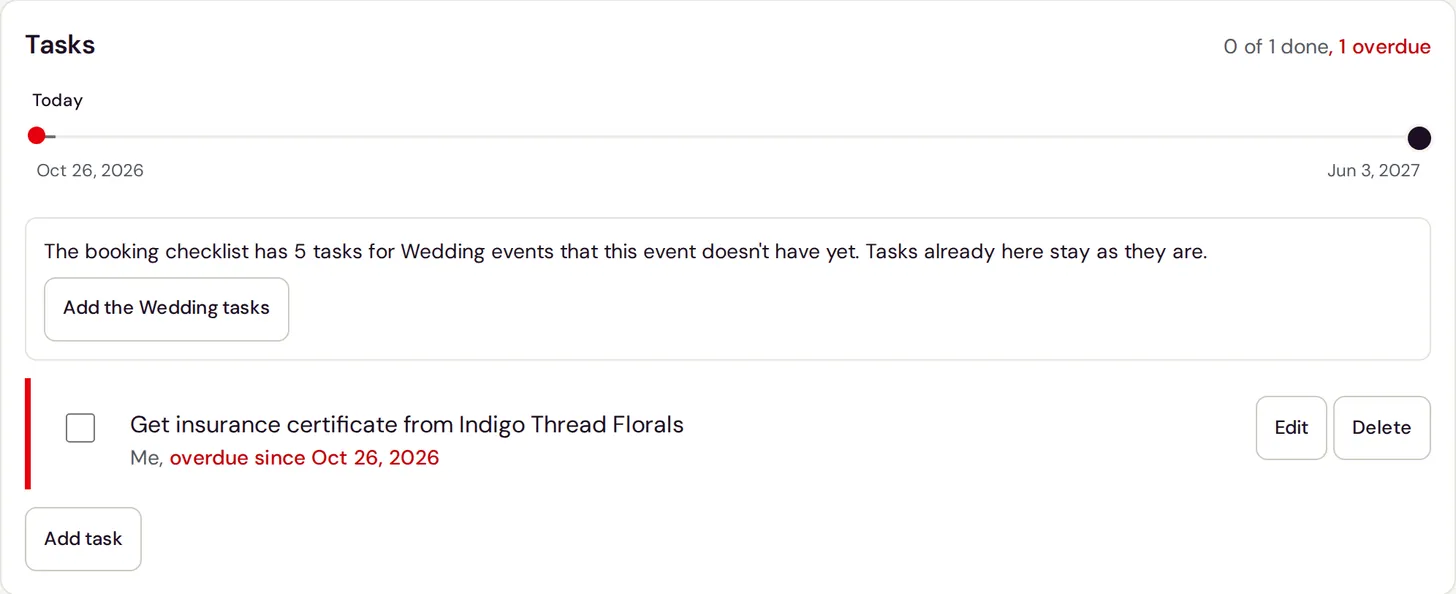
- Under Tasks, click Add task.
- Say what needs doing in Task (under 300 characters), choose Who does it, and set a Due date if there is one.
- Click Add.
Tick a task's box when it's done. Click Edit to change a task, or Delete to remove it. A task that came from a package or checklist won't be added again once deleted.
Culture and traditions
- Under Culture and traditions, choose the event's cultures.
- Tick the tradition items the family wants. Each one adds its tasks to the event and a note vendors see. Traditions are starting points: the family confirms what they want.
- If a culture has a kosher setting, choose it and click Save kosher setting. Kosher-style and Certified kosher each add their tasks.
- Click a Menu ideas suggestion to add it to the menu.
Unticking a tradition or removing a culture asks whether to remove the open tasks it added. Tasks already done always stay.
Days, run of show, venue, dietary needs and menu
- Under Days and ceremonies, add each day of a multi-day celebration with Add a day, with its name, date, times, venue and guests.
- Under Run of show, add each moment with Add a moment: the time, what happens and who.
- Under Venue, set the Venue status and click Save venue status. If the client needs a venue, add options with Shortlist, then Choose the one they book. Otherwise pick the venue and click Save venue.
- Under Dietary needs, click a quick button such as + Halal or + Nut allergy, or Add a need with how many guests it's for.
- Under Menu, write the menu in Menu text and click Save menu text.
- Under Notes, keep your own notes about the event, saved with Save notes.
While the event is a lead, Details shows a date check: whether the date is open, or how many events are already booked that day against your daily limit in Settings.
Who gets emailed
Nobody, from the Plan tab. Booking the event emails the vendors on its services that they're booked (see Services and pricing on an event).
What you'll see when it worked
The event moves to its new stage in the Pipeline or Booked events, and its tasks show how many are done and overdue.
If something goes wrong
| What you see | What to do |
|---|---|
| Enter the client's or couple's name. | The name is the only required field. |
| Book the event first. | Move a lead to Booked before a later stage. |
| That stage change is not available. Refresh the page and try again. | Your role can't make that move, or the event changed. Refresh the page. |
| Choose why the lead was lost. | Pick a reason before you click Mark lost. |
| This event changed since the page loaded. Refresh the page and try again. | Someone else changed it. Refresh, then make your change again. |
| Say what needs doing. | Give the task a title. |
Be careful
- Yes, mark booked can't be undone: a booked event never goes back to the pipeline.
- Yes, cancel the booking closes the event for good. Handle any refunds yourself on the Payments tab.