
Event setup
Event setup is what every new event starts with: your event types, the questions clients answer, and the tasks added when an event is booked. Change these once, and every new inquiry or booking picks them up.
Who can do this
- Owners and managers can change event setup.
- Sales can see it but not change it.
- Kitchen staff can't open it.
Before you start
If you loaded the starter library when you created your business, Event setup already has event types, client questions, a booking checklist, and traditions for Nigerian, Caribbean and Jewish celebrations, and the page says so at the top. Most caterers only need small changes. If not, an owner can click Load the starter library on Home.
How the page works
Click Event setup in the menu. The page has five sections: Event types, Client questions, Booking checklist, Traditions and Kosher tasks. Each one starts closed, with how many it has beside its name, for example "Client questions · 26". Click a section's name to open or close it.
Inside an open section:
- Each row shows what uses it, such as Not used yet, "Used on 2 events" or Not answered yet.
- Owners and managers see a … button on each row. Click it to see what you can do with that row. Each choice says what it does, and only the choices that row allows are shown. When one is missing, a line at the bottom says why.
- Press Escape, or click anywhere else, to close the … menu without choosing.
Event types
The list you choose from when you create an event.
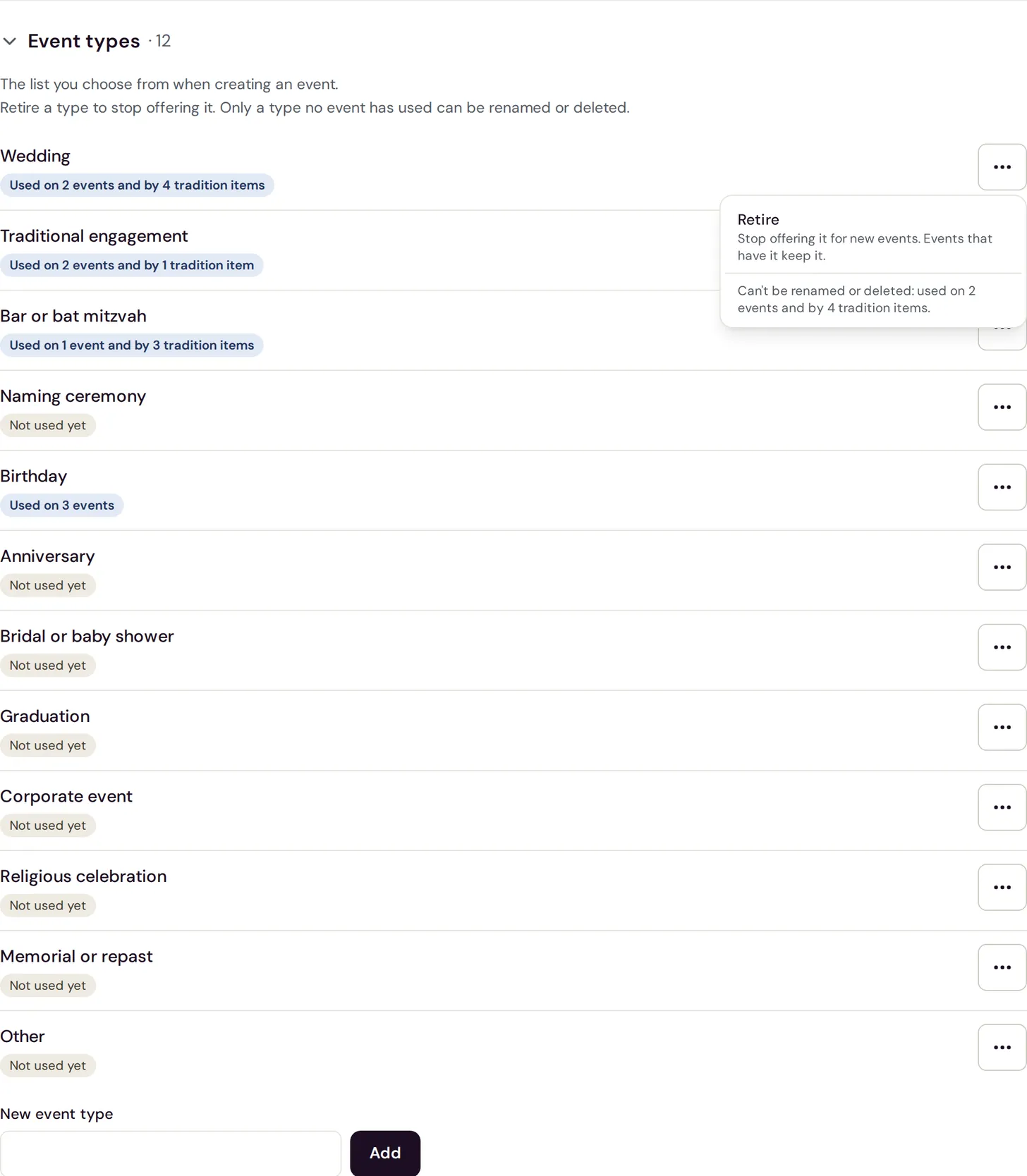
- Open Event types.
- Type a name in New event type (under 80 characters) and click Add.
- To stop offering a type, click … on its row, then Retire. Events that already have it keep it. It moves under Retired, where … then Restore brings it back.
- Rename and Delete are offered only for types no event has used yet. A type on booking checklist tasks can be renamed but not deleted.
Client questions
What clients answer in their client portal, either every client or the clients of one culture's events. Inside the section, the questions are grouped (Every client, then each culture's events), each group closed with its count. Click a group to open it.
- Open Client questions.
- Type the New question (under 300 characters).
- Choose who it's Asked of.
- Click Add the question.
From a question's … menu you can Reword or Delete it until a client answers it. After that its wording stays, so every answer keeps the question it answered. To change an answered question, choose Retire and add the new wording.
Booking checklist
Tasks added to every event when it's booked, due a number of days before the event.
- Open Booking checklist.
- Type the Task.
- Choose what it's Added to: every booked event, or booked events of one style.
- Set Days before (it starts at 14). Use a negative number for days after the event.
- Choose Who does it: Us, Vendor or staff, or Client.
- Choose For all events, or only some event types.
- Click Add the task.
To change or remove a task, click … on its row, then Edit or Delete. A change reaches events booked from then on; tasks already on events stay as they are.
Traditions and kosher tasks
Traditions shows the tradition items you can tick on an event, with the tasks they add and the note vendors see. Kosher tasks shows the tasks added when an event is kosher style or certified kosher. You can see them here, but to change them, ask GildLuxe support at support@gildluxe.com.
Traditions are starting points: each family confirms what they want for their own celebration.
Who gets emailed
Nobody. Event setup doesn't send any email.
What you'll see when it worked
New event types appear when you create an event, new questions appear in your clients' portals, and checklist tasks appear on events booked from then on.
If something goes wrong
| What you see | What to do |
|---|---|
| You already have that event type. | Use the one you have, or choose a different name. |
| A row's … menu has no Rename or Delete | The line at the bottom of the menu says why: it's in use, answered, or on checklist tasks. Use Retire instead. |
| This event type is in use, so it can be retired but not deleted. | Choose Retire instead. |
| This event type is in use, so it can't be renamed. Retire it and add the new name. | Retire the old type, then add one with the new name. |
| This event type is on checklist tasks. Take it off them first, or retire it. | Edit those checklist tasks first, or retire the type. |
| This question has answers, so it can be retired but not deleted. | Click Retire instead, then add new wording if you need it. |
| Tick at least one event type, or choose All events. | Tick an event type for the task, or choose all events. |
Be careful
- Delete on a checklist task removes it straight away, with no "are you sure?" step.
- Changes here only reach new events and new bookings. Events you already have keep what they had.