
The kitchen view and packing lists
The kitchen view shows each booked event's menu, dietary needs, run of show, tasks and equipment, without prices, budgets or client contact details. It's what kitchen staff see when they sign in.
Who can do this
- Kitchen staff, owners and managers.
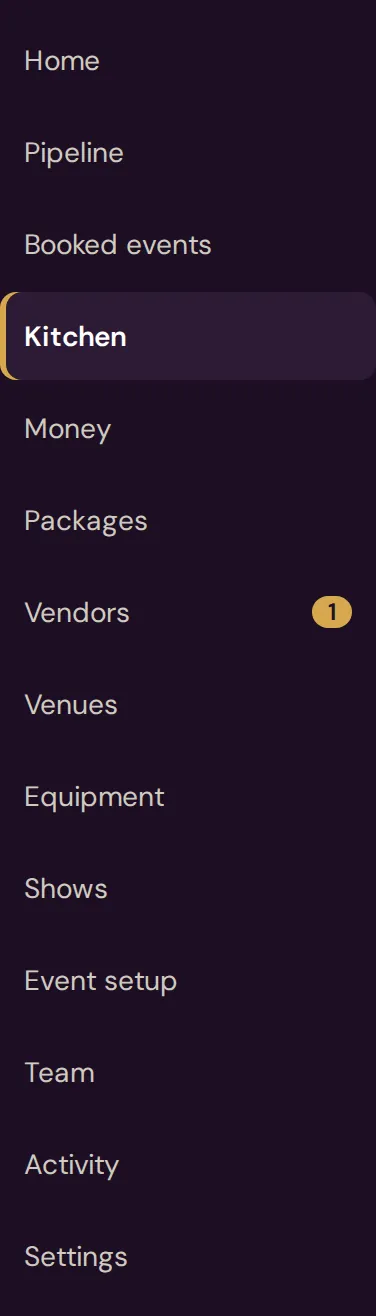
- Kitchen staff go straight to Kitchen when they sign in. Owners and managers click Kitchen in the menu.
- Sales don't see the kitchen view.
Before you start
Book the event and fill in its menu, dietary needs, run of show and equipment on its Plan tab (see Plan an event and Equipment).
The list
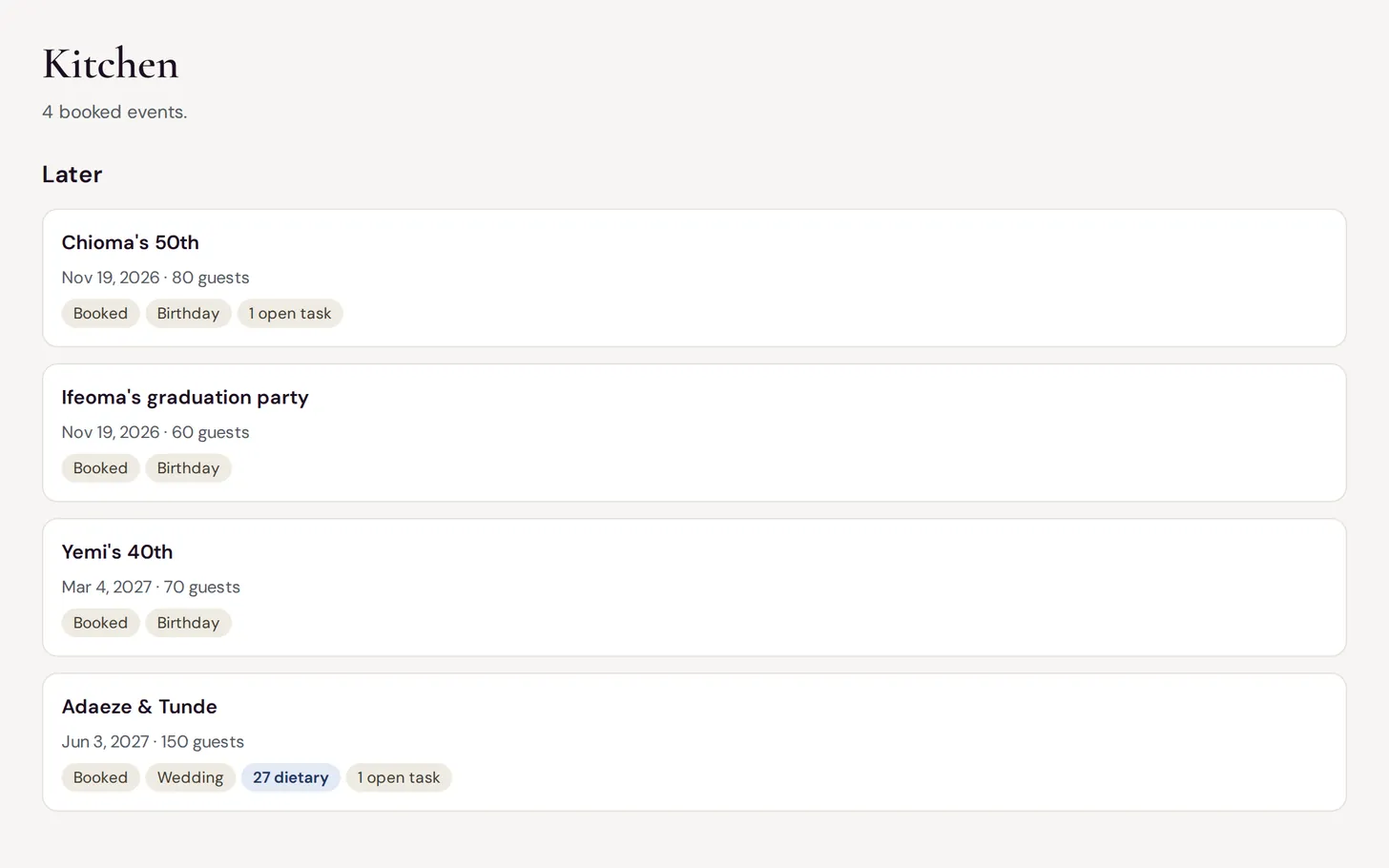
Kitchen lists every booked event, grouped under Today, Next 7 days, Later, Date not set and Date has passed. Each card shows the date, guests, service style, load-in time, how many dietary needs, and how many of your team's tasks are open. Tasks for a vendor or the client aren't counted.
An event
Click an event to see its date, guests, service style, load-in and load-out, then:
- Menu
- Dietary needs, with how many guests each
- Days and ceremonies, for a celebration over several days
- Equipment
- Run of show
- Tradition notes
- Tasks, your team's
- Vendor and client tasks, when the event has any
Tick one of your team's tasks when it's done. Only the person who ticked a task can untick it.
Vendor and client tasks are there so the kitchen knows what others are doing, such as a vendor delivering chafing dishes. They have no box to tick: the vendor or client ticks them in their own portal, or an owner, manager or salesperson ticks them on the event's Plan tab.
The packing list
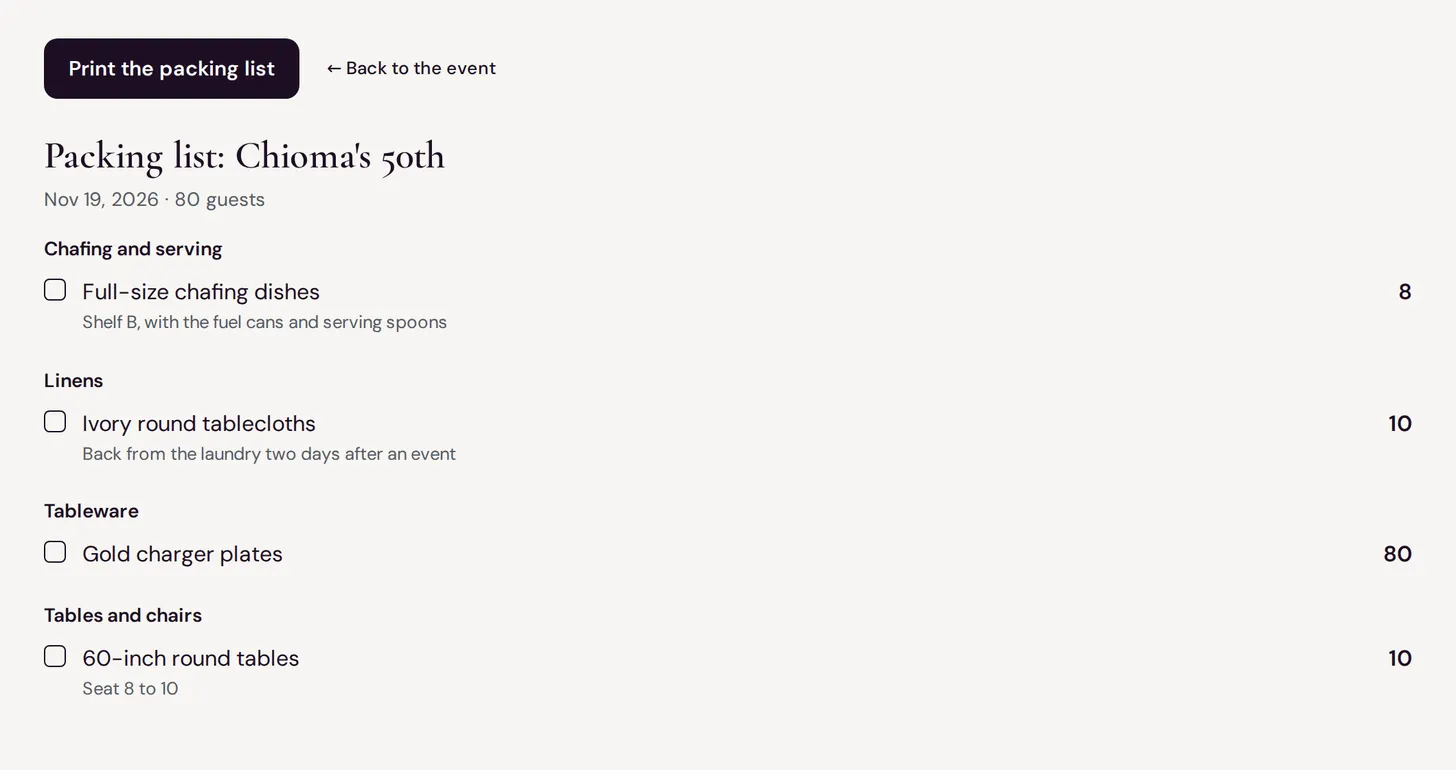
- On the event, under Equipment, click Print the packing list.
- The list shows each item by category, with its quantity and a box to tick on paper.
- Click Print the packing list again to print it.
Who gets emailed
Nobody. The kitchen view doesn't send any email.
What you'll see when it worked
Ticked tasks show as done, and the event's card shows how many of your team's tasks are still open.
If something goes wrong
| What you see | What to do |
|---|---|
| Only the person who ticked this task can untick it. | Ask whoever ticked it. |
| No equipment for this event yet. | Add what the event needs on its Plan tab. |
Be careful
- Only booked events appear. A lead shows up once it's booked.