
Equipment
Keep a list of the gear you own, such as chafing dishes, linens and tables, and say how much each event needs. GildLuxe warns you when events on the same days need more than you own.
Who can do this
- Owners and managers can add equipment and say what each event needs.
- Sales can see the Equipment page and each event's equipment.
- Kitchen staff can see equipment for booked events, and print a packing list in Kitchen.
Before you start
Count what you own, and decide how many days each item needs between events, for cleaning or coming back late.
Add your equipment
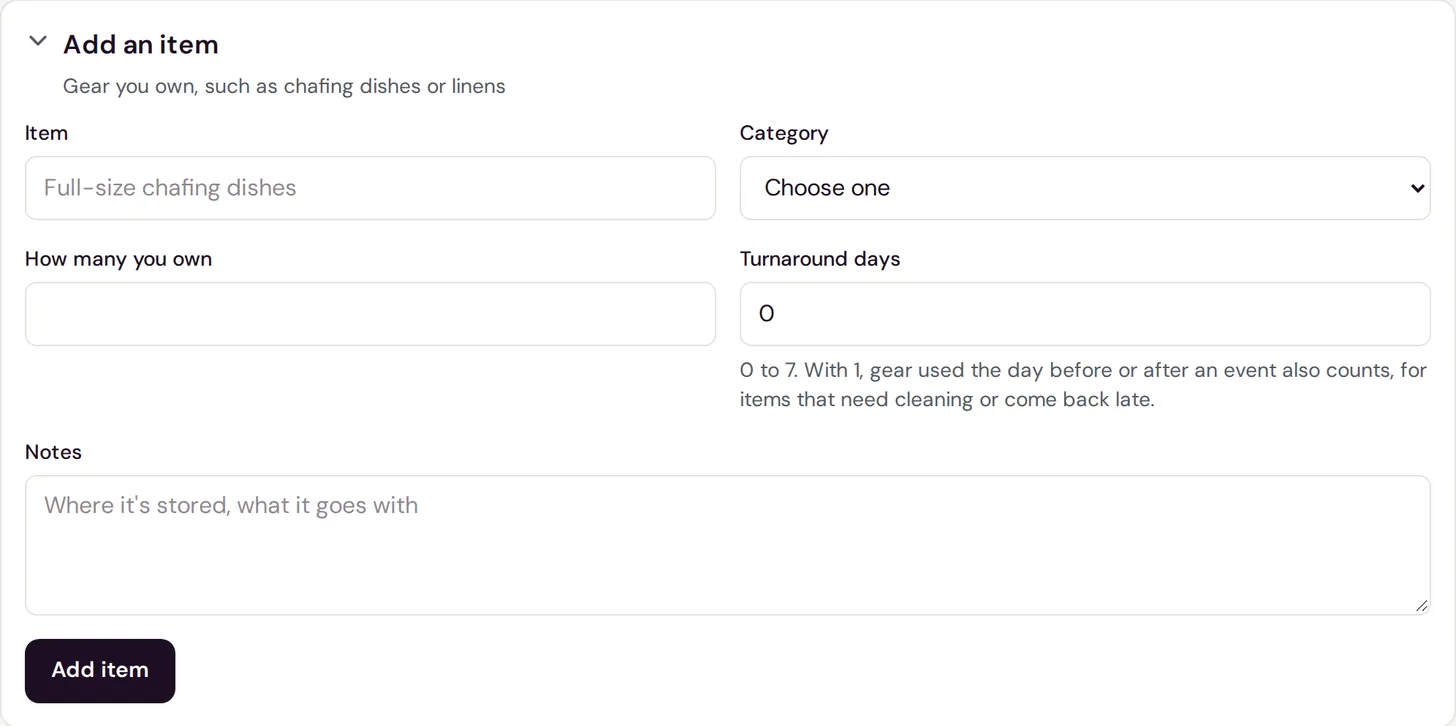
- Click Equipment in the menu, then open Add an item. It starts open when you have no equipment yet.
- Type the Item name (up to 120 characters), such as Full-size chafing dishes.
- Choose a Category: Chafing and serving, Cooking and holding, Linens, Tableware, Decor, Tables and chairs, Transport and storage, or Other.
- Enter How many you own.
- Set Turnaround days, from 0 to 7. With 1, gear used the day before or after an event also counts.
- Add any Notes, such as where it's stored.
- Click Add item.
How the page works
Your items are grouped by category, such as Chafing and serving or Linens. Each category shows how many items it has, for example "Chafing and serving · 4 items, 1 short". Click a category's name to open or close it. A category with a short item is marked Short and starts open, so you see the shortage straight away; the others start closed.
When anything is short, a note at the top lists those items. Click a name to jump to it.
Each item has a … button. Click it to see what you can do with that item, each with a line saying what it does:
- Edit opens the item's details. Change them and click Save item, or Cancel.
- Archive or Restore.
- Delete, only for an item no event uses. When it's missing, a line at the bottom says why, such as "Can't be deleted: used on 2 events."
Sales and kitchen staff see the items and their next 90 days, but no … button.
Say what an event needs
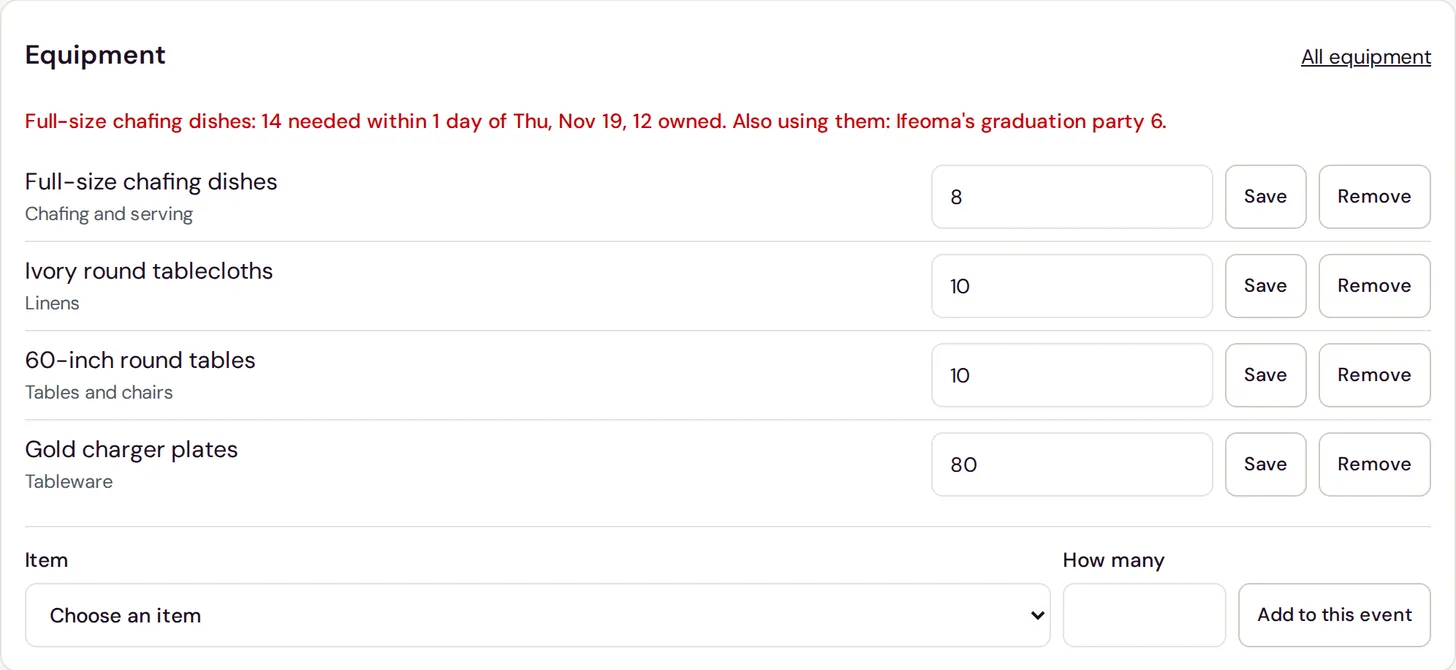
- Open the event. On the Plan tab, find Equipment.
- Choose the Item and enter How many.
- Click Add to this event.
Change a quantity and click Save, or click Remove to take an item off the event.
How shortages are worked out
For each item and each of the event's dates, GildLuxe adds up what this event needs and what every other booked event needs within the item's turnaround days. If that's more than you own, the item is short.
- Leads are named, marked "(lead)", but not counted. A lead's own page is checked as if it were booked.
- Completed, closed, lost and cancelled events never count.
- An archived item still counts on events that use it.
Where you'll see warnings
- On the Equipment page, a Short label on the item and on its category, and the note at the top, for booked events in the next 90 days.
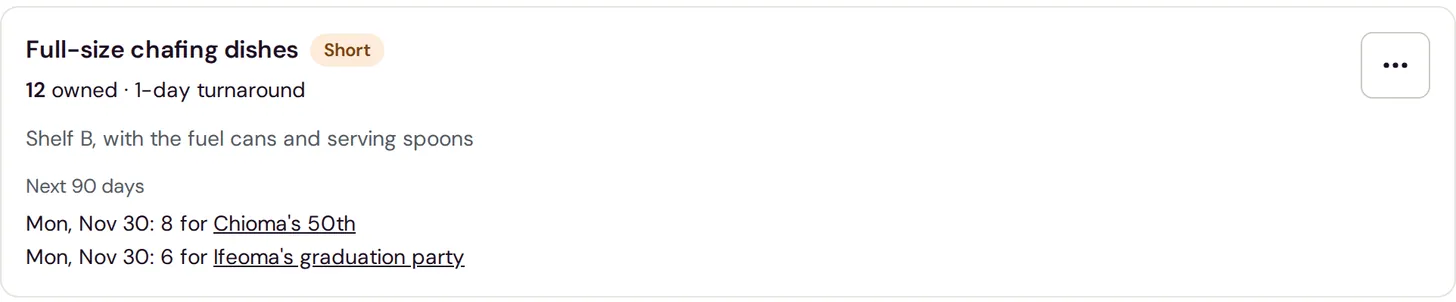
- On the event's Plan tab, under Equipment and beside the date check. Each warning says how many are needed, on or near which date, how many you own, and which other events are using them.
- On Home, under Needs attention, when booked events in the next 90 days are short.
- Right after you book an event that's short.
Archive or delete an item
From the item's … button:
- Archive hides an item from new events. Events that use it keep it, marked "(archived)". Restore brings it back. Show archived lists archived items.
- Delete only appears for an item no event has used.
Who gets emailed
Nobody. Equipment doesn't send any email.
What you'll see when it worked
Each item shows how many you own and, under the next 90 days, which events need it and how many.
If something goes wrong
| What you see | What to do |
|---|---|
| You already have an item with this name. | Edit the item you have, or use a different name. |
| Choose a category. | Pick a category from the list. |
| Enter 0 to 7 days. | Use a whole number of days from 0 to 7. |
| The event's Equipment says to add what you own on the Equipment page first | Add the item on Equipment, then come back to the event. |
| This item is used on an event, so it can't be deleted. Archive it to hide it from new events. | Choose Archive from the item's … button instead. |
Be careful
- Shortages count only booked events. Book an event, or check a lead's own page, to see whether it fits.
- A warning doesn't stop you booking: change what the event needs, or arrange more before the day.