
Create your business and finish setup
Create your business on GildLuxe with the invite code we sent you, then use the guided setup to add your details, charges, terms and team. It takes about ten minutes.
Who can do this
- Anyone with an invite code from GildLuxe can create a business. The person who creates it becomes its owner.
- Owners and managers can use the guided setup afterwards.
Before you start
- Have your invite code ready. It looks like GLX-XXXX-XXXX-XXXX, works once, and has an expiry date. If it has expired, ask GildLuxe support for a new one at support@gildluxe.com.
- Sign in first (see Sign in to GildLuxe), with an email address you don't use for a client or vendor portal. A portal email can't create a business.
- Choose your business's web address before you start. It can't be changed later.
- Have your state's sales tax and alcohol tax rates to hand. You can add them later, but you can't send a proposal or invoice until both are set.
Create your business
- Sign in. You'll see Set up your business. The bar at the top shows which email you're signed in with, with Help and Sign out. If it's the wrong email, click Sign out and use a different email. under the blue note.
- Type your code in Invite code. Capitals and spaces don't matter.
- Type your Business name. It's required, and must be under 120 characters.
- Check Your GildLuxe link. It fills in from your business name. Use lowercase letters, digits and hyphens (1 to 50 characters). It can't be changed later, and a few words are kept for GildLuxe itself, such as help, admin and demo.
- Choose your State (required) and Time zone (it starts on Eastern). Choosing Maryland fills in its tax rates for you: 6% sales tax and 9% alcohol tax.
- Add your Business email (optional) and Business phone (optional).
- Under 2. Charges, check Service charge % (it starts at 20) and Gratuity % (it starts at 0). Both are required, from 0 to 100. Sales tax % and Alcohol tax % can be left empty for now.
- Under 3. Starter library, the box to load the starter library is ticked. It gives you event types, Nigerian, Caribbean and Jewish traditions with their tasks and questions, and standard planning tasks, as your own copy to edit. Untick it if you'd rather start empty.
- Tick the box to agree to the Terms of Service and confirm you've read the Privacy Policy.
- Click Create my business.
What happens next
- With a free pilot code, you go straight to your business's Home page.
- With a paid code, you go to Billing, which says Your business is set up. Subscribe to start using GildLuxe. Your account is read-only until you subscribe, so subscribe before the guided setup: see Your GildLuxe subscription.
Finish the guided setup
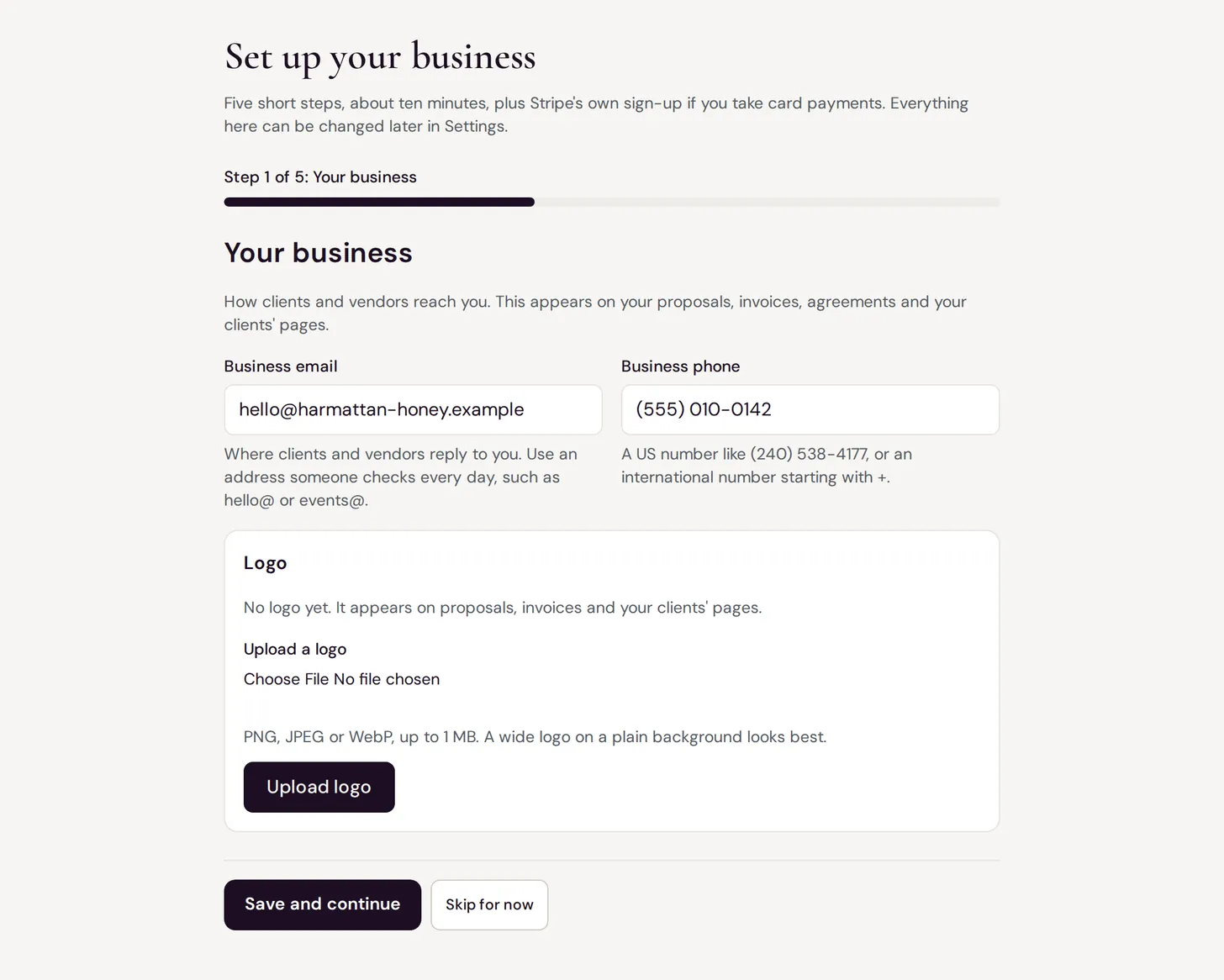
On Home, the Getting started list has a Start setup button (Continue setup once you've begun). The guided setup has five steps: Your business, Your charges, Your terms, Getting paid and Your team. On each step, Save and continue saves it and opens the next one, Skip for now moves on without saving, and Back goes to the step before.
- On Your business, add your Business email and Business phone. Clients and vendors reply to that email, so use one someone checks every day. To add a logo, choose a PNG, JPEG or WebP file of 1 MB or less and click Upload logo. The logo saves on its own button, not with Save and continue.
- On Your charges, check Service charge %, Gratuity %, Sales tax % and Alcohol tax %. Enter 0 for a tax that doesn't apply to you. Tick whether your service charge is mandatory (mandatory service charges are usually taxable; check with your accountant). To change which services the charges apply to, open Adjust which services these apply to.
- On Your terms, write your Payment terms and Cancellation policy. Use sample wording fills a box with a starting point. It isn't legal advice, and it isn't saved until you click Save and continue.
- On Getting paid, add your Payment instructions, such as who to pay by Zelle or who to make checks out to. They're shown on every invoice.
- On Your team, invite the people who work with you, each with a role. See Your team and their roles. Then click Finish setup.
On the Getting paid step, an owner can also connect Stripe so clients can pay by card. Stripe's own sign-up takes about 10 to 15 minutes more: see Connect Stripe to take card payments.
The Getting started list on Home
The list has ten items, from your email and phone to inviting your team. Each one links to where you do it.
- Click Skip on an item you don't need, and Undo to bring it back.
- An owner can click Hide this checklist. To bring it back, click Show the setup checklist on Home in Settings.
- If you didn't load the starter library when you created your business, an owner can click Load the starter library on Home.
Who gets emailed
Creating your business emails nobody. On the Your team step, each person you invite gets an email inviting them to join your business.
What you'll see when it worked
After Finish setup, Home says Setup saved. Next: review your packages, and add your venues and vendors. Everything you entered can be changed later in Settings.
If something goes wrong
| What you see | What to do |
|---|---|
| That invite code is not valid | The code is wrong, used, cancelled or expired. Check it, or ask GildLuxe support for a new one. |
| This invite code is for the web address followed by an address | Your code was made for one web address. Use that address in Your GildLuxe link. |
| That web address is not available | Choose another web address. |
| Another business already uses that web address. Try another. | Choose another web address. |
| Use 1 to 50 lowercase letters, digits and hyphens, starting and ending with a letter or digit. | Fix the web address: no spaces, capitals or symbols. |
| Tick the box to agree to the Terms of Service and confirm you have read the Privacy Policy. | Tick the box, then click Create my business again. |
| Please fix the highlighted fields. | Each field with a problem says what's wrong underneath it. |
| Upload an image of 1 MB or less. | Choose a smaller logo file. |
| You already have followed by your business's name | You've already created a business with this email. Click Go to your business, or open Set up another business to create a separate one. |
| You were invited as a client or vendor, but see Set up your business | Click Sign out at the top, then open the invitation link in your email. If you can't find it, ask whoever invited you to send it again. |
Be careful
- Your web address is permanent. Check it before you click Create my business.
- With a paid code, nothing you change saves until you subscribe.