
Your team and their roles
Give each person who works with you their own sign-in, with a role that decides what they can see and do.
Who can do this
Owners and managers. Owners can give any role. Managers can give any role except owner, and can't change or remove an owner.
The four roles
| Role | What they can do |
|---|---|
| Owner | Everything, including billing and Stripe. |
| Manager | Everything except connecting Stripe and a few owner-only settings. Can't make anyone an owner. |
| Sales | Leads, events and pricing. Not vendor costs or margins, unless an owner allows it in Settings. |
| Kitchen | Booked events' menus, dietary needs, run of show and tasks. No prices or client contact details. |
A few things only an owner can do: billing, connecting Stripe, the Activity log, the sales discount limit, who sees vendor costs, and giving GildLuxe support access. Only owners and managers can record, void or refund payments, and make your business page's QR code and Instagram bio link. Sales can see and download those, with their scan counts, from Settings, under Your page.
Clients and vendors aren't team members. You invite them from their own event or vendor pages.
Before you start
You need each person's email address. They'll sign in with exactly that address.
Invite someone
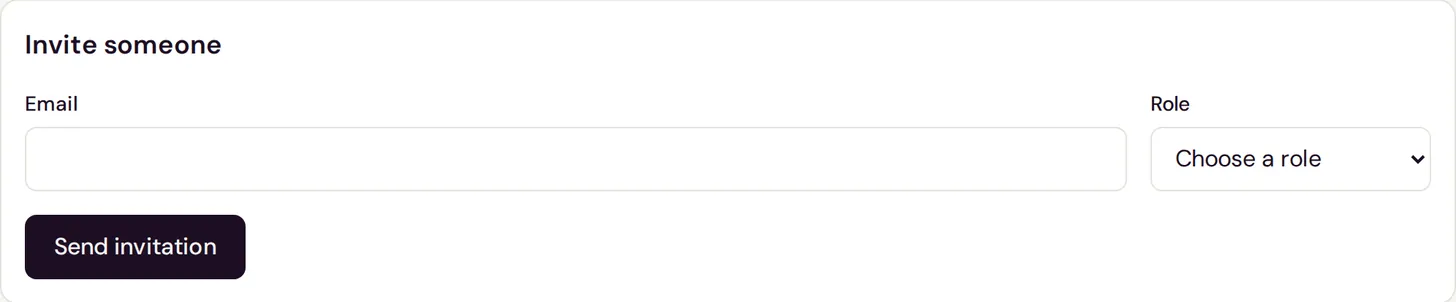
- Click Team in the menu, or Manage your team in Settings.
- Under Invite someone, type their Email.
- Choose their Role.
- Click Send invitation.
GildLuxe emails them an invitation, and shows the invitation link once on the page. If the email couldn't be sent, click Copy invitation link and send it to them yourself.
An invitation works for 7 days. Inviting the same email again cancels the earlier invitation.
Pending invitations
Invitations not yet accepted are listed under Pending invitations, with their role and when they expire.
- New link makes a fresh link, valid for another 7 days, and emails it again. The old link stops working.
- Revoke cancels the invitation.
Change or remove a member
Everyone on the team is listed under Members.
- To change someone's role, choose the new role next to their name and click Change role.
- To take someone off the team, click Remove. To take yourself off, click Leave.
How your teammate joins
- They open the email, called Join (your business) on GildLuxe, and click Accept the invitation.
- They sign in with the email address the invitation was sent to.
- On the next page they click Accept the invitation, and they're in your business.
If they work for more than one business on GildLuxe, they'll see Your businesses after signing in and can choose one. They can also switch from the business name at the top of the menu.
Who gets emailed
- The person you invite, when you click Send invitation, and again when you click New link.
- Nobody is emailed when you change a role, remove someone, or someone leaves.
What you'll see when it worked
The new person moves from Pending invitations to Members, with their role.
If something goes wrong
| What you see | What to do |
|---|---|
| That person is already on the team | They're already a member. Change their role under Members instead. |
| Choose a role you can give. | Choose a role from the list. Managers can't invite owners. |
| A business always keeps at least one owner. | Make someone else an owner first, then change or remove this one. |
| This invitation can no longer be used (seen by your teammate) | The invitation was used, cancelled or expired. Click New link and send it again. |
| This invitation link is not valid (seen by your teammate) | The link may have been cut short. Click New link and send it again. |
| Sign in with the invited email address (seen by your teammate) | They're signed in with a different email. They click Sign out and use another email, then sign in with the invited one. |
| Confirm your email address first (seen by your teammate) | They open the confirmation email GildLuxe sent them, use its link or code, then open the invitation again. |
| This email address is used for a client portal, so it cannot join a team or create a business. Use a different email address. | Invite them with a different email address. |
Be careful
- Change role, Remove and Leave take effect straight away, with no "are you sure?" step.
- The owner role includes billing and Stripe. Give it only to people who should run the business's money and subscription.
- Sales see vendor costs and margins only if an owner turns that on in Settings, under Who sees vendor costs.