
The vendor portal
A caterer has given you a vendor portal on GildLuxe. It's where you see the events you work, your services and tasks, the run of show and your payouts, check in on the day, and send your documents.
Who can do this
Vendors and event staff a caterer has invited. You only see what's yours: never the caterer's prices, their client's payments, or other vendors.
Before you start
- Find the email from the caterer called Your vendor portal with (their business name).
- Use the email address it was sent to. The invitation works for 7 days. If it has expired, ask the caterer for a new one.
Open your portal
- In the email, click Open the vendor portal.
- Sign in with the email address the invitation was sent to. GildLuxe emails you a sign-in link and a 6-digit code: there's no password (see Sign in to GildLuxe).
- Click Open the vendor portal on the page that opens.
Next time, sign in at app.gildluxe.com/login.
If you work for more than one caterer on GildLuxe, they all appear on Your work, one under another, each with its own events, payouts and documents. There's nothing to switch between: scroll down to the next caterer.
Your work
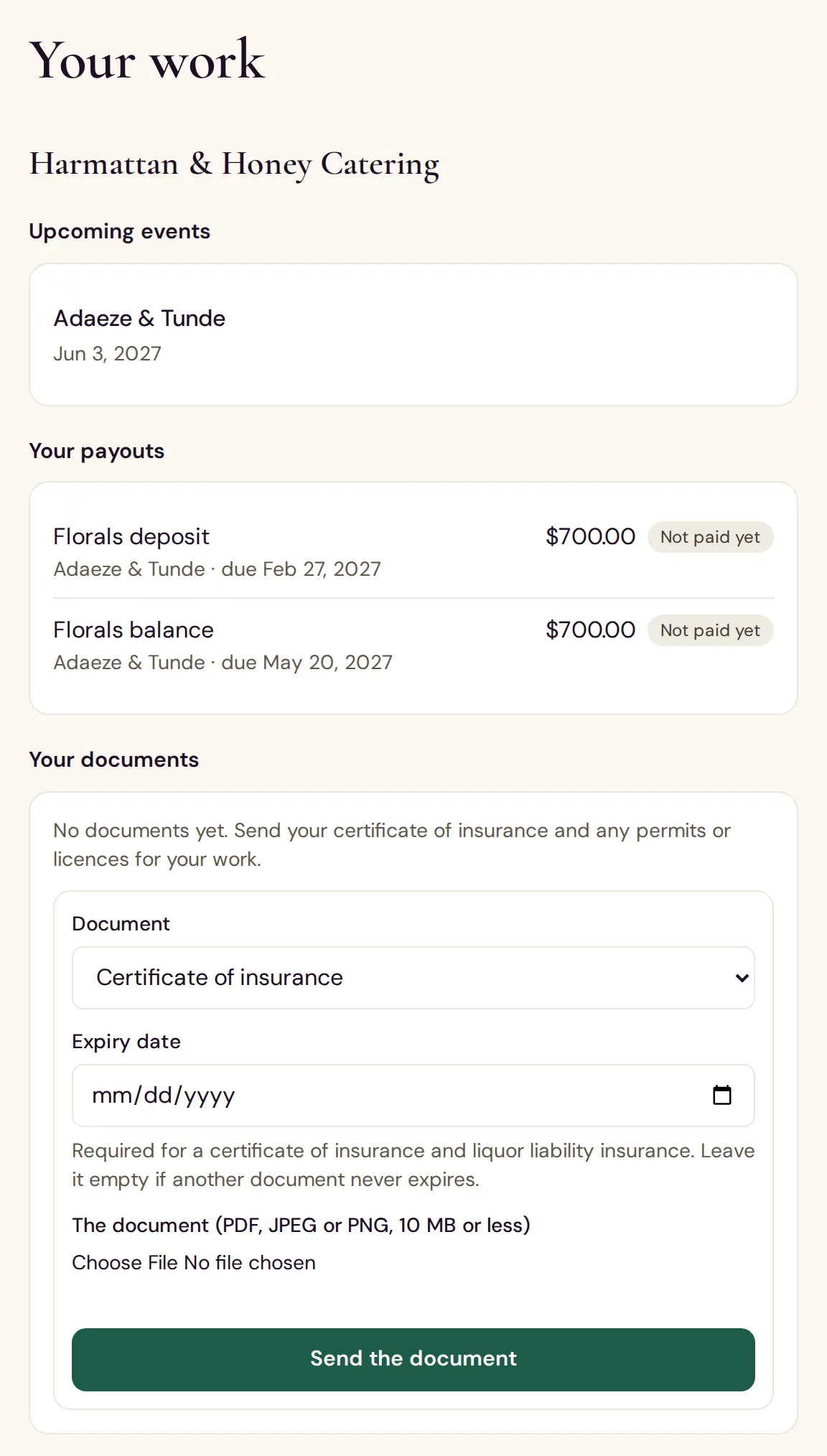
- Upcoming events: each event you're on, with its date, venue and load-in time. Click one to open it.
- Past events: events you worked whose last day is over, most recent first. You can still open them and download their work orders.
- Your payouts: what the caterer has recorded paying you, or not yet.
- Your documents: your insurance and permits, and whether the caterer has accepted them. Event staff don't have this section.
An event
Each event shows your services, your tasks, customs notes, dietary needs (if you're on catering), the run of show and venue notes. Directions opens a map, and Coordinator calls the caterer.
- Tick your tasks as you do them. If a tick can't be saved, the page says which task and why.
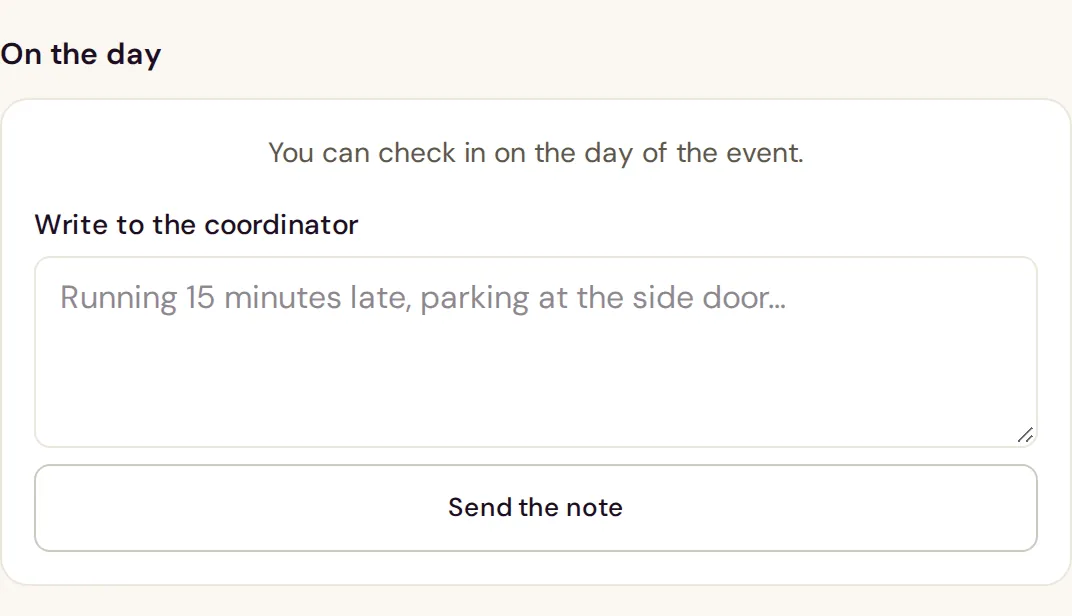
- On the day, click I've arrived to check in. It works only on the event's dates.
- To tell the caterer something, such as that you're running late, type in Write to the coordinator and click Send the note. The caterer's team sees your note on the event's page in GildLuxe; it isn't emailed to them. For anything urgent, call with Coordinator instead.
- Click Download the work order (PDF) for everything on one page.
Send a document
- On Your work, under Your documents, choose the Document, such as a certificate of insurance.
- Enter the Expiry date. It's required for insurance; leave it empty for a document that never expires.
- Choose the file: a PDF, JPEG or PNG of 10 MB or less.
- Click Send the document.
The caterer reviews it. If they can't accept it, you'll get an email with their reason, and you can send it again.
Who gets emailed
- You, when a caterer books you for an event, and if they can't accept a document you sent.
- Nobody at the caterer is emailed when you send a note or check in. Your note and check-in time show on the event's Plan tab in their GildLuxe, where their team looks.
What you'll see when it worked
After you check in, the event says when you checked in. After sending a document, it says the caterer will review it.
If something goes wrong
| What you see | What to do |
|---|---|
| You can check in on the day of the event. | Check in on the event's date. |
| That date has passed. Upload a current document. | Send a document that hasn't expired. |
| Upload a PDF, JPEG or PNG. | Save the document as one of those types. |
| Sign in with the invited email address | You're signed in with a different email. Click Sign out and use another email, then sign in with the one the invitation was sent to. |
Be careful
- Ticking a task can't be undone. If you ticked one by mistake, tell the caterer.
- A note to the coordinator doesn't email anyone. For anything urgent on the day, call them with Coordinator.