
Build a payment schedule
Split an event's contract into payments, such as a deposit to reserve the date, a second payment and the final balance, each with its due date.
Who can do this
Owners, managers and sales can build and change the schedule, and request payments. Only owners and managers can record payments as paid, void invoices or refund.
Before you start
- Price the event's services, so it has a contract total (see Services and pricing on an event).
- Enter both tax rates in Settings. Until then the schedule can't be built.
Build the schedule
- Open the event and click the Payments tab.
- Under Client payments, click Build a payment schedule.
- Check the payments it suggests. Each one has a name, a percent, and the number of days before the event it's due. It starts with:
- Deposit to reserve the date: 30%, due when you build it;
- Second payment: 40%, 90 days before the event;
- Final balance: 30%, 14 days before the event.
- Change any name, percent or number of days. Leave the days empty for a payment due today. Click Add a row for more payments (up to 12), or Remove for fewer.
- Click Build.
GildLuxe splits what isn't yet invoiced or paid between the payments, in proportion to their percents, so they don't have to add up to 100. The last payment takes any rounding. A due date is never earlier than today.
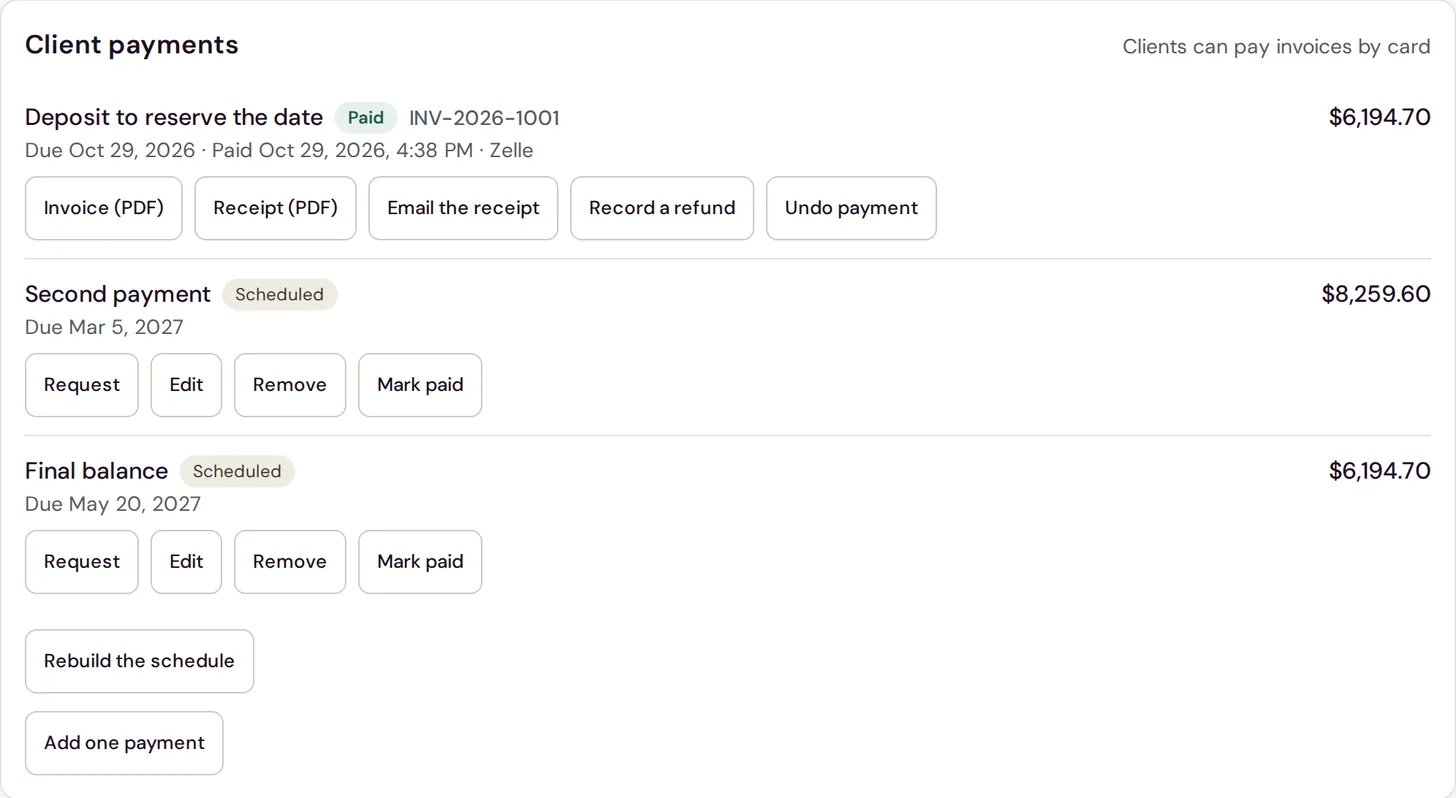
Add, change or remove one payment
- Click Add one payment, then enter its Label, Amount ($) and Due date, all required. Click Add payment.
- On a scheduled payment, click Edit to change it and Save payment to keep it, or Remove and then Yes, remove.
Once a payment has been requested, it has an invoice number and can't be changed or removed. You can only void it (see Record payments, receipts and voids).
If the contract changes
The schedule doesn't change by itself. If the payments no longer add up to the contract, the Payments tab says so. Click Rebuild the schedule, then Rebuild. Rebuilding replaces the scheduled payments; invoiced and paid ones stay.
Payment statuses
Scheduled, Invoiced, Paid, Voided and Refunded. A scheduled or invoiced payment past its due date shows Overdue, and the event's Payments tab shows how many are overdue or due in the next 14 days.
Who gets emailed
Nobody, while you build or change the schedule. Your client is emailed when you request a payment (see Request a payment).
What you'll see when it worked
Each payment is listed with its amount and due date, marked Scheduled, and the tab's summary shows the contract, what's collected and what's still to collect.
If something goes wrong
| What you see | What to do |
|---|---|
| Enter the sales and alcohol tax rates in Settings before building a schedule. | Add both rates in Settings (0 is fine). |
| Everything is already invoiced or paid, so there is nothing left to schedule. | Nothing to do: the contract is fully covered. |
| Add at least one payment with a label and a percent. | Give at least one payment a name and a percent. |
| Each payment must come to more than $0. Use fewer payments or larger percents. | Remove a payment, or raise its percent. |
| Payments changed since you opened the schedule. Review it again. | Someone else changed them. Look again, then build. |
| This payment has an invoice number, so it is kept. Void the invoice instead. | Void it instead of removing it. |
Be careful
- Build and Rebuild replace the scheduled payments straight away, with no "are you sure?" step. Invoiced and paid payments are never touched.