
Money, vendor payouts and commissions
See what clients owe you and what you owe vendors across every booked event, and keep track of vendor payouts and referral commissions.
Who can do this
- Owners, managers and sales can open Money. Kitchen staff can't.
- Vendor costs, payouts, margins and commissions show only to owners and managers, and to sales if an owner allows it in Settings.
- Only owners and managers can add or change payouts and commissions.
Before you start
Add vendor costs to your events' services, so GildLuxe can show margins and suggest payouts (see Services and pricing on an event).
The Money page
Click Money in the menu. It covers every booked event, including completed ones; cancelled bookings are left out.
- At the top: Contracted, Collected, Still to collect and Overdue. Owners and managers also see Margin, Paid to vendors and Still owed to vendors.
- Warnings for booked events: payments that don't add up to the contract, an event with no payment schedule, and (for those who see costs) a date when vendor payments run ahead of what clients have paid. Each links to the event's Payments tab.

- Coming in: client payments due in the next 30 days, and any overdue.
- Going out: vendor payouts due in the next 30 days, and any overdue.
- Open commissions: commissions not yet settled.
Vendor payouts
Payouts are your record of what you pay vendors. GildLuxe doesn't send money to vendors: you pay them your usual way and record it here.
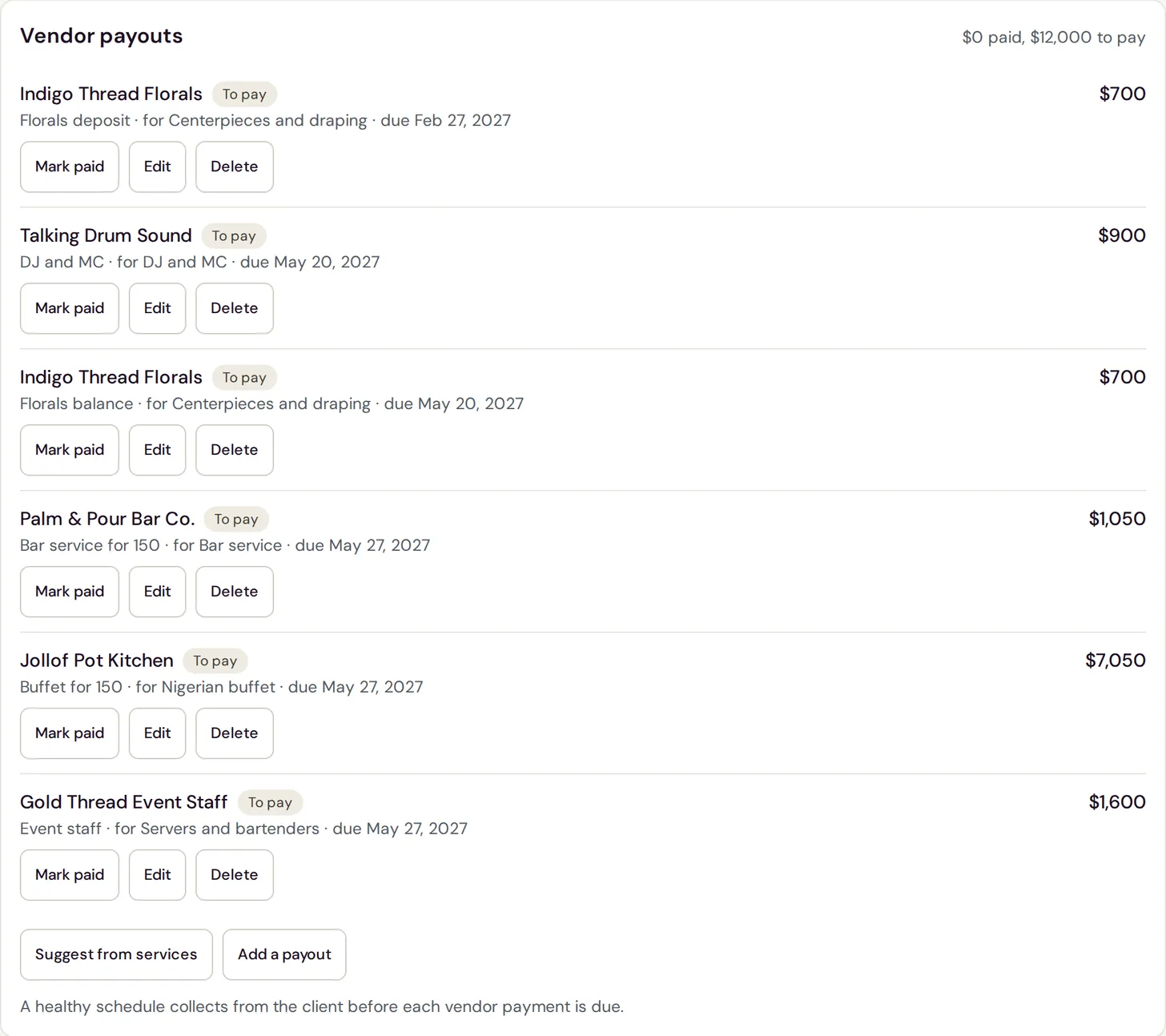
- Open the event and click the Payments tab. Find Vendor payouts.
- Click Suggest from services. For each service with a vendor and a cost, GildLuxe adds a booking deposit (half the cost, due today) and a balance (due on the event date). Running it again adds nothing twice.
- Or click Add a payout and enter the Vendor, For the service (optional), Payout label, Payout amount ($) and Payout due (optional). Click Add payout.
- When you've paid a vendor, click Mark paid, choose How it was paid, add a Reference (optional) such as a check number, check Paid on, and click Record it paid.
A paid payout can't be changed or deleted; click Undo payment first if it was a mistake. If a payout's service is removed, it's marked Unlinked: click Review to link it to another service, or mark it reviewed.
Vendors with access to the vendor portal see their payouts there, as Paid or Not paid yet, without the method or reference.
Referral commissions
Fees you owe a venue or partner for sending you the client, or fees a vendor owes you. Both count in the event's margin.
- Under Referral commissions, click Add a commission.
- Choose Who pays, then enter With (who it's with), the Commission amount ($), Commission due (optional) and Basis, such as 10% of catering.
- Click Add commission.
Click Mark settled when it's paid, and Undo settled if that was a mistake.
Who gets emailed
Nobody. Payouts and commissions don't send any email.
What you'll see when it worked
Vendor payouts shows what's paid and what's still to pay. A healthy schedule collects from the client before each vendor payment is due.
If something goes wrong
| What you see | What to do |
|---|---|
| Only owners and managers can change payouts and commissions. | Ask an owner or manager. |
| Enter an amount above $0. | Enter the amount. |
| Choose the vendor. | Pick the vendor for the payout. |
| This payout is recorded as paid. Undo that first to change it. | Click Undo payment first. |
| This commission is settled. Undo that first to change it. | Click Undo settled first. |
Be careful
- Payouts without a due date don't appear in Going out or in the cash warning. Give each payout a due date.
- If the cash warning appears, move a client payment earlier or a vendor payment later.