
Home and Activity
Home is your day at a glance: what's due, what needs attention, where your inquiries come from, and what's coming up. Activity is the owner's record of who changed what.
Who can do this
- Owners, managers and sales see Home. Kitchen staff go straight to Kitchen.
- Some Home items are for owners and managers only, such as vendor documents, payments to review, and the setup checklist.
- Only the owner sees Activity.
Before you start
Nothing. Home fills in as you add inquiries, events and tasks.
Home
Click Home in the menu.
- The tiles at the top: Open leads, Events in the next 30 days, Still to collect, Overdue client payments, and (for those who see costs) Still owed to vendors. Each one links to the page with the detail.
- Today: your own tasks due today or overdue, overdue first.
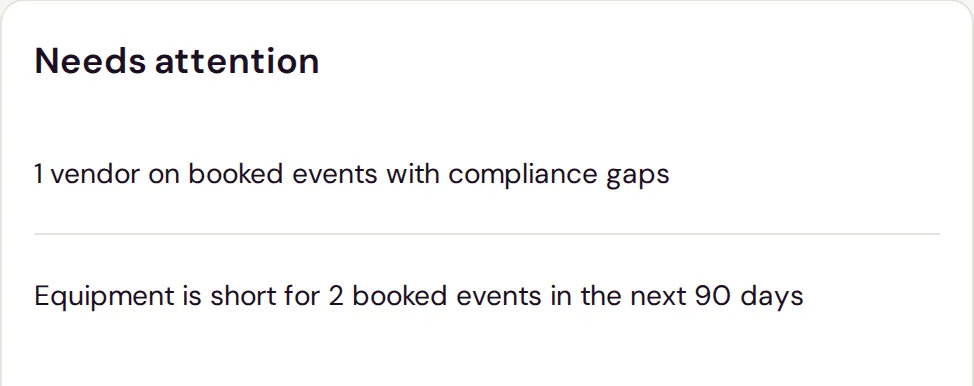
- Needs attention: things to act on, such as new inquiries to reply to, possible duplicates, unread client messages, agreements out for signature for more than a week, vendor documents waiting for your review, vendors with compliance gaps, and equipment that's short. Each links to where you deal with it.
- Inquiries by source: where your inquiries came from in the last 90 days, and how many were booked.
- Coming up: your next five booked events, with what's still to collect from each.
While you're setting up, Home also shows Getting started (see Create your business and finish setup).
Activity
- Click Activity in the menu.
- Choose what to see: All, Money, Access, Events, Agreements, Settings or Support.
- Click Older to go back, and Newer to come forward. There are 50 entries a page, newest first.
Each entry says what changed, when, and who did it: a team member, GildLuxe (automatic), Stripe, or GildLuxe support. Visits from GildLuxe support are recorded too.
Who gets emailed
Nobody. Home and Activity don't send any email.
What you'll see when it worked
When everything is up to date, Needs attention says Nothing needs your attention right now.
If something goes wrong
| What you see | What to do |
|---|---|
| A note to add your tax rates before sending a proposal or invoice | Enter both rates in Settings. Enter 0 if no tax applies. |
| Nothing due today. Tasks with a due date show here on the day. | Nothing to do: give tasks a due date if you want them here. |
Be careful
- Today shows only tasks you do yourself. Tasks waiting on clients or vendors are under Needs attention, as Waiting on others.