
Your business page
A public page for your business, with your story, the ceremonies you cater, your cuisines and traditions, your packages and photos, and the questions people ask you, ending in your inquiry form. Share it in your Instagram bio, on flyers and with past clients. It's also what search engines find for you, so it can be your website.
Who can do this
- Owners and managers can set up and publish the page, and make its QR code and Instagram bio link.
- Sales can see the page's settings, and see and download the QR code and Instagram bio link, with how often they've been opened, to hand them out at shows. Where an owner can make a new one, sales see Only owners and managers can make a new one.
Before you start
- Your business page is off until you publish it. Until then, only you and your team can see it, in the preview, and its address opens your inquiry form instead.
- Turn on your inquiry form (see Your inquiry form). The page ends in it.
- Have your photos ready: JPEG, PNG or WebP, up to 10 MB each. Only use photos you have permission to share publicly.
How the page works
Publishing sits at the top, always open. Below it, Details, Cover photo, Ceremonies we cater, Cuisines and traditions, Packages, Gallery, Questions and answers and Links to share each start closed, with what they hold beside the name, such as "Gallery · 8 of 24 photos". Click a card's name to open it and change it.
A card marked Needs filling in is still missing something, and its line says what, such as "No cover photo yet" or "None chosen". The note at the top lists them under Before you publish, fill in:; click a name to open that card. It also says when your inquiry form is off, with a link to turn it on. A section you've hidden under Sections to show says "Hidden on your page" and is never marked. The questions and the links to share are optional, so they're never marked either. None of this stops you publishing.
Set up the page
- In Settings, find Your page and click Set up your page.
- Open Details and write your Tagline (up to 90 characters), About us (up to 600) and Where you cater. Add your Instagram handle, WhatsApp number, Phone and Email if you want them on the page. Choose an Accent colour and the Sections to show. Click Save details.
- Still in Details, add the Town or city you're based in and its State, such as Bowie and Maryland, so search engines know where you are. Enter just the town or city: your street address is never asked for or shown. The page then says "Based in: Bowie, MD".
- Open Cover photo and add one: choose it, Describe the cover photo for people using screen readers, tick I have permission to share these photos publicly., and click Add cover. To change it later, click … beside the cover, then Replace cover or Remove cover.
- Open Ceremonies we cater, tick the ceremonies you cater and click Save ceremonies.
- Open Cuisines and traditions, tick the ones to show and click Save cuisines. They're the cultures in Event setup, and search engines read them as your cuisines.
- Open Packages, tick the packages to show, with an optional starting price per guest or in total, and click Save packages. None show until you tick them.
- Open Gallery and add photos one at a time (up to 24): choose the New photo, Describe the photo, choose a Ceremony if you like, tick the permission box, and click Add photo. Each photo then shows as a short row. Click … on a row, then Edit description and ceremony to change it, then click its save button ("Save photo 1", and so on), or Remove to take it off your page straight away.
- Open Questions and answers to add the questions people often ask you, up to 8: write the Question and its Answer, and click Add question. Don't name your clients. Each question then shows as a short row. Click … on a row, then Edit to change it and click its save button ("Save question 1", and so on), or Remove to take it off your page.
Your logo, business name and website come from Settings. Your website shows on the page only when it's a web address, such as https://yourbusiness.com. Only the photos you add here appear: nothing from your events is ever shown.
Search engines
Once your page is published, Google and other search engines can list it, with your town, cuisines, packages and questions. To keep it out of search results, open Details, tick Hide from search engines and click Save details. Your page stays published for anyone with its link, and you can untick it at any time.
Preview and publish
- Click Preview your page to see it as visitors will.
- Click Publish your page.
- Click Copy link to share it.
To take it down, click Unpublish, then Yes, unpublish. Visitors and QR codes then see your inquiry form instead.
Your page's address
Your page's address is shown on this page once it's published. To have it at your own name, such as yourbusiness.gildluxe.com, ask GildLuxe support at support@gildluxe.com.
Instagram bio link and QR code
Open Links to share.
- Click Make the Instagram bio link and put it in your Instagram bio. Inquiries through it are recorded as from Instagram.
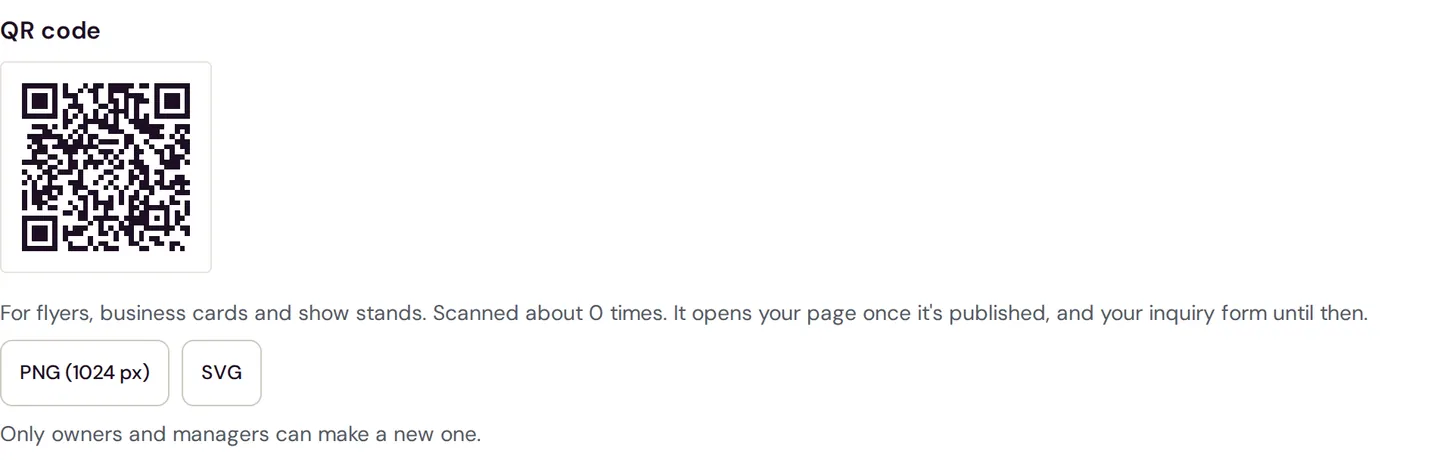
- Click Make the QR code for flyers, business cards and show stands. Download it as PNG (1024 px) or SVG. It opens your page once it's published, and your inquiry form until then.
Each shows roughly how many times it's been opened. Sales can download them too. To replace one (owners and managers), click Make a new QR code or Make a new Instagram link, then Yes, make a new one. The old one still opens your page, but its visits have no source.
Who gets emailed
Nobody, when you set up or publish the page. Inquiries from it email you as any inquiry does.
What you'll see when it worked
The page says it's published, with its link. Visitors who click Request a quote go to your inquiry form at the bottom of the page.
If something goes wrong
| What you see | What to do |
|---|---|
| A message that your web address is reserved | Ask GildLuxe support to change it before publishing. |
| Choose a photo under 10 MB. | Use a smaller photo. |
| Choose a JPEG, PNG or WebP photo. | Save the photo as one of those types, then add it again. |
| Tick this to add the photo. | Tick the permission box. |
| The gallery holds up to 24 photos. Remove one first. | Remove a photo before adding another. |
| Enter just your town or city, such as Bowie. Your street address is never shown. | Take out the street, house number or ZIP code. |
| Choose your state too. or Enter your town or city too. | Fill in both, or leave both empty. |
| The page holds up to 8 questions. Remove one first. | Remove a question before adding another. |
Be careful
- Only add photos you have permission to share publicly, and never photos of your clients' events without their agreement.
- If your inquiry form is off, the page's Request a quote shows only your contact details.