
Invite your client and message them
Give your client their own event page, where they see their plans, make choices, accept proposals and message you. Each client sees only their own event.
Who can do this
Owners, managers and sales.
Before you start
You need the client's email address. They'll sign in with exactly that address. An event can have more than one client, such as both members of a couple.
Invite your client
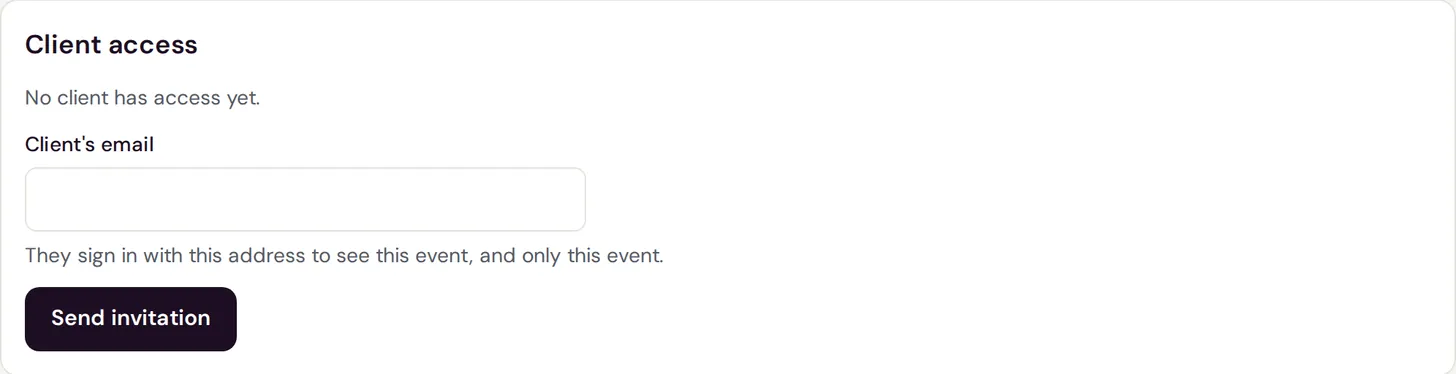
- Open the event and click the Client tab.
- Under Client access, type the Client's email.
- Click Send invitation.
GildLuxe emails them an invitation, and shows the invitation link once on the page. If the email couldn't be sent, click Copy invitation link and send it to them yourself. An invitation works for 7 days.
To see the event page as your client does, click Preview as client.
Pending invitations and access
- New link makes a fresh link for another 7 days, and emails it again. The old link stops working.
- Revoke cancels an invitation that hasn't been accepted.
- Remove access takes a client off the event, after you confirm with Yes, remove access.
How your client joins
- They open the email, called Your event page with (your business), and click Open your event page.
- They sign in with the email address you invited.
- They click Open my event page.
They can't use an email address that belongs to someone on your team.
Message your client
- Under Messages, type in Write to the client (up to 4,000 characters).
- Click Send.
Every client on the event sees it. If they have nothing unread from you, they're emailed that there's a new message. Further messages don't send another email until they've read the thread. When your client writes to you, the Client tab shows how many messages are new.
The final guest count
Once the event is booked, your client can send their final guest count from their event page. You'll see it under Final guest count, marked late if it came after your Final headcount due date. Click the button to accept that number of guests, or Dismiss it.
Who gets emailed
- The client: the invitation (and again with New link), and a new-message email when they have nothing unread from you.
- Your business: when the client writes to you while you have nothing unread from them, and when they send a final guest count. These go to your business email in Settings, or to the owners and managers if there's none.
What you'll see when it worked
The client moves from the pending invitations to the list of clients with access, showing the date they joined.
If something goes wrong
| What you see | What to do |
|---|---|
| That person already has access to this event | They're already in. Nothing to do. |
| That email address belongs to someone on your team | Invite the client with their own email address. |
| This invitation can no longer be used (seen by your client) | It was used, cancelled or expired. Click New link and send it again. |
| Sign in with the invited email address (seen by your client) | They're signed in with a different email. They sign out, then sign in with the one you invited. |
| Keep a message under 4,000 characters. | Shorten the message, or split it in two. |
Be careful
- Remove access stops the client seeing the event straight away, and cancels any open invitations to them for it.
- Everything you write in Messages is seen by every client on the event.